Sign In Sign Up Collections Repository Progress Pricing

Setup

Qlavist relies on precise MIDI data and internet connection. Ensure your signal chain meets the specifications below for accurate feedback and velocity tracking.

1

Select Input Source

Use an instrument that can send MIDI (note data) to your computer or tablet. Velocity support is recommended for better feedback.

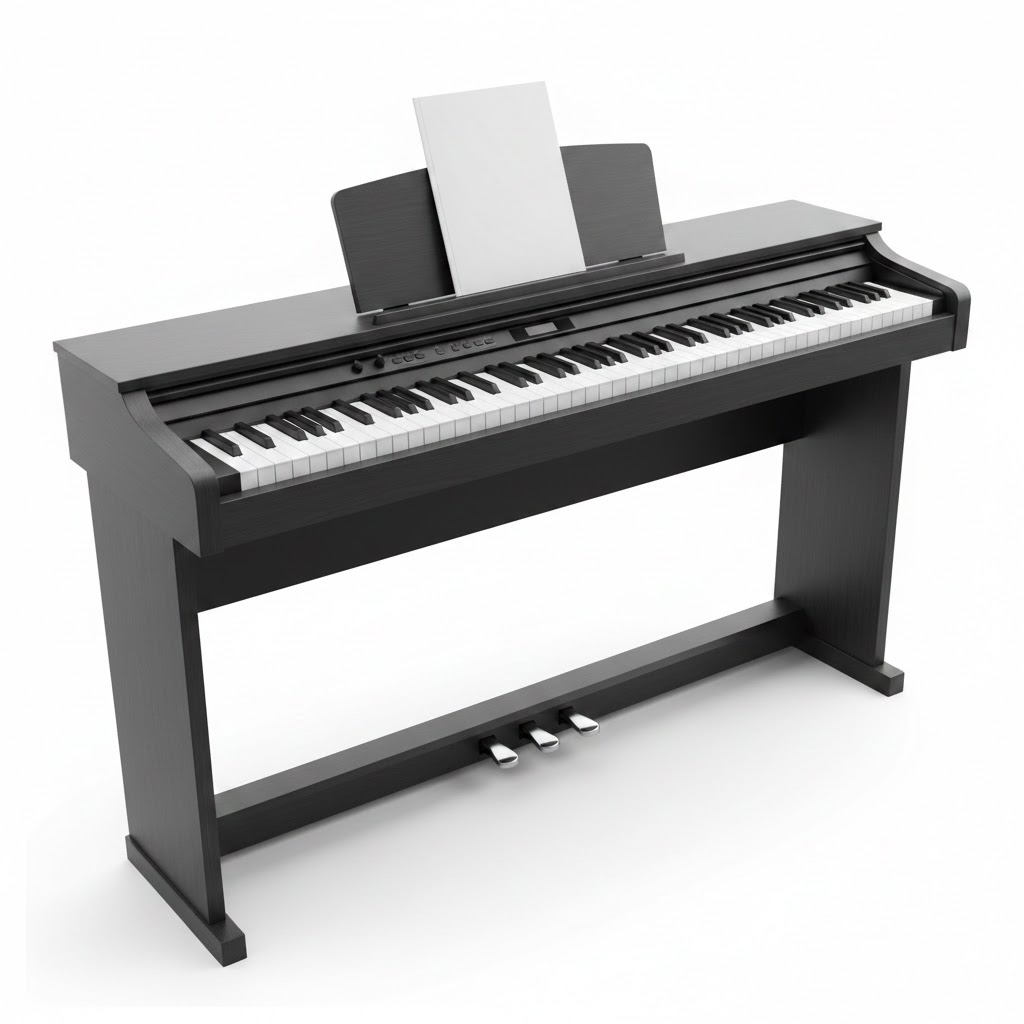
Digital piano Digital Piano

Digital Piano

Closest to acoustic feel and usually the most consistent touch.

  • Weighted or semi-weighted action
  • 88 keys recommended (61+ acceptable)
  • Sustain pedal recommended
🎹
MIDI Keyboard / Controller

MIDI Keyboard / Controller

Works with Qlavist as long as it sends MIDI to your device.

  • Weighted or semi-weighted action
  • 88 keys recommended (61+ acceptable)
  • Sustain pedal support recommended
Right now, Qlavist supports MIDI instruments only.
If you play an acoustic piano, you can still use Audition mode to study the music and hear playback.
Microphone-based input for acoustic pianos is planned for a future update.
2

Establish Connection

For accurate timing, use a wired connection. Avoid Bluetooth for practice tracking.
Interface Type

Direct USB (Preferred) USB-B to USB-A/C cable.
Legacy MIDI (5-Pin) Use a MIDI-to-USB interface (DIN → USB). Connect the piano’s MIDI OUT → interface MIDI IN.
Drivers
If your instrument/interface is class-compliant, it usually works instantly (no driver install). If it doesn’t show up, install the manufacturer driver and reconnect.
In Qlavist
MIDI setup
In an exercise, look for this icon next to the playback controls. Click it to connect/select your MIDI keyboard.
3

Platform Compatibility

Qlavist works in browsers that support Web MIDI (for MIDI input). For a cleaner experience, you can also install it as an app (PWA) on supported platforms.

Enable MIDI in your browser
  • When prompted, click Allow to let Qlavist access your MIDI device.
  • If you blocked it: open the site settings (lock icon) → allow MIDI devices, then reload.
OS Environment Supported Browsers Notes
Windows 10 / 11 Chrome Edge Opera Supported.
macOS Chrome Edge Opera Supported.
Linux Chrome Chromium Opera Supported.
ChromeOS (Chromebook) Chrome Supported.
Android (Tablet) Chrome Supported (OTG adapter/hub required for USB connection).
iOS / iPadOS (Safari + all iOS browsers) Web MIDI is not supported on iOS/iPadOS browsers due to Apple platform limitations. You can still use Qlavist in Audition mode, or switch to a Desktop or Android device for MIDI input.

Install Qlavist as an App

Run Qlavist in a distraction-free window. No app store required.

Desktop (Chrome / Edge)
  1. Open qlavist.com
  2. Click the install icon (varies by version) in the address bar
  3. If you don’t see the icon: open > Cast, save, and share > Install Qlavist
  4. Launch from your Applications menu.
Android (Chrome)
  1. Open qlavist.com in Chrome
  2. Tap > Add to Home screen
  3. Confirm installation
  4. Launch from your Home screen or App Drawer.

Diagnostics

Reconnect the cable, reload Qlavist, and re-check that MIDI access is allowed for the site.

Close other music apps (DAWs, synths, MIDI tools). Some devices/interfaces can only be used by one app at a time.

Ensure your adapter supports OTG. Disable battery saver mode and keep screen awake.
Still stuck? Contact Support