Qlavist works best on tablets and desktop screens.


Sign In Sign Up Collections Practice Paths Progress Repository Setup

Set Up Qlavist

Qlavist runs in your browser. Check compatibility with your device and learn how to connect your piano for real-time feedback.

1. Select your device

Recommended browsers

Interactive piano connection is limited

Standard iPhone and iPad browsers cannot receive notes from your digital piano for Qlavist's real-time feedback.

What you can still do

Browse Qlavist's sheet music, study pieces and listen to playback using Audition and Performance modes.

Want to try connecting your piano?

A third-party app, MIDIWeb Browser , may allow piano input. Qlavist hasn't tested it, so compatibility isn't guaranteed.

A Qlavist app for iPhone and iPad is planned.

Using a Chromebook? View ChromeOS setup

ChromeOS · Supported — Use Chrome with a class-compliant USB MIDI instrument. Connect it with a compatible USB cable or adapter, then allow MIDI access when Qlavist asks.


2. Choose your instrument

For real-time feedback, use a digital piano or keyboard that can send playing information (MIDI) to your device.

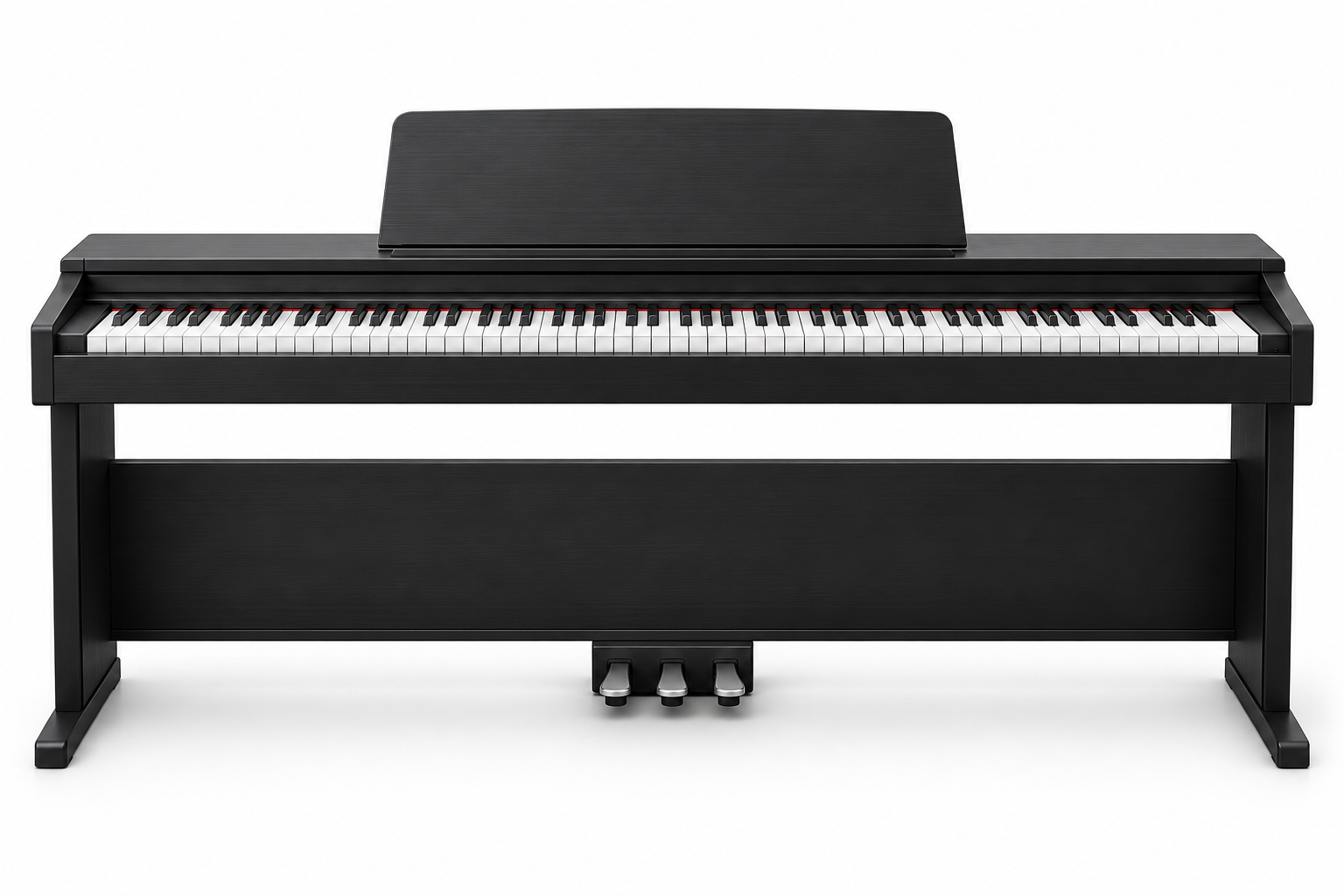
Digital piano

Digital Piano

Closest to the feel of an acoustic piano.

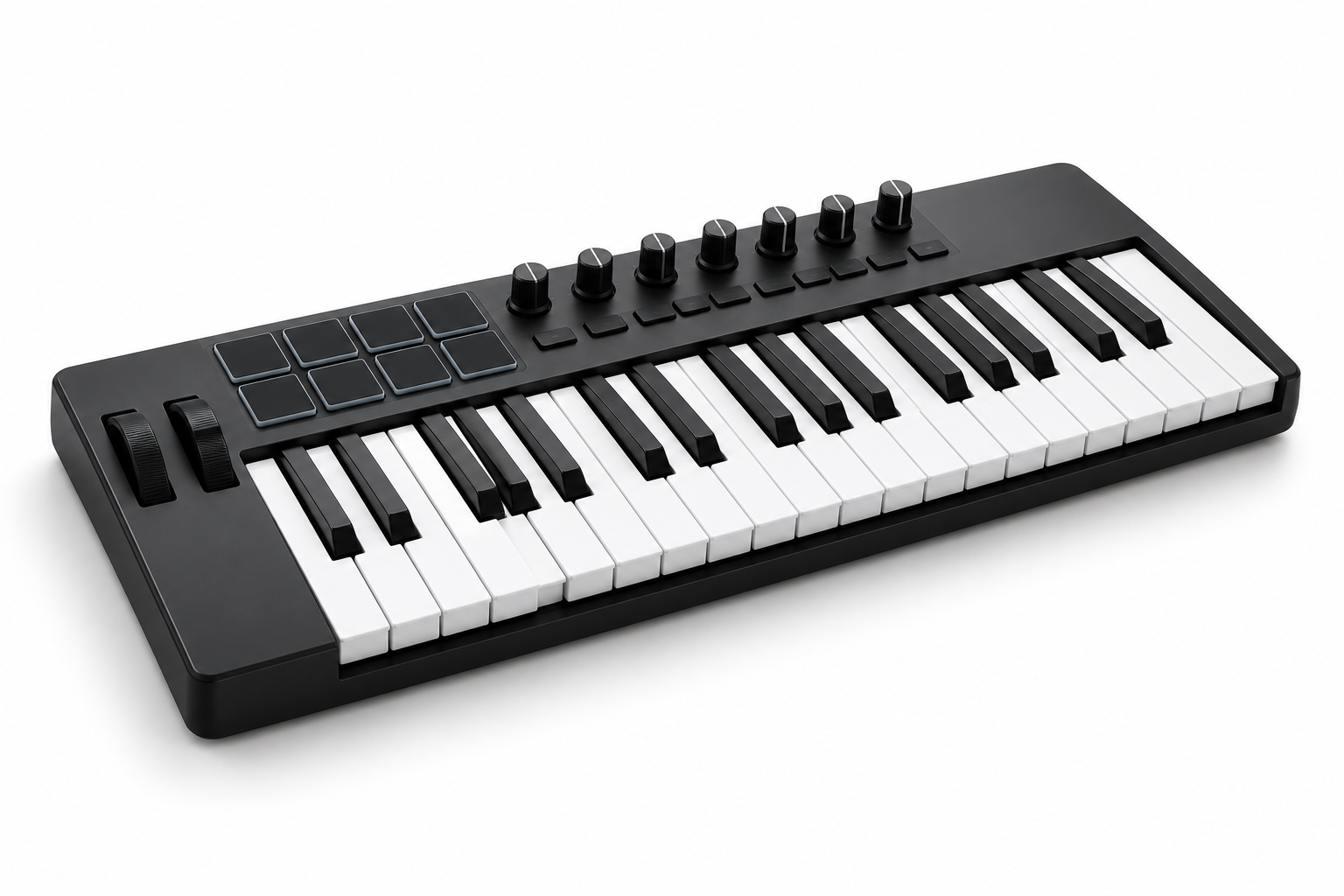
MIDI keyboard

MIDI Keyboard

A flexible, portable alternative.

What we recommend for both

  • Weighted or semi-weighted keys
  • 88 keys preferred (61–64 acceptable)
  • Velocity sensitivity and sustain pedal support
Have an acoustic piano?

You can still study sheet music and listen to playback using Qlavist's Audition and Performance modes. Microphone input is planned for a future update.


3. Connect your instrument

For digital pianos and MIDI keyboard controllers. A wired connection is recommended for accurate timing.

Direct USB connection (recommended)

Connect your piano using a compatible USB cable. Depending on your device, you may need a USB-B to USB-A cable, a USB-B to USB-C cable, or a USB-C adapter.
Traditional five-pin MIDI connection
Use a MIDI-to-USB interface. Connect the piano's MIDI OUT to the interface's MIDI IN, then connect the interface to your computer or compatible mobile adapter.

4. Connect in Qlavist

  • When the browser asks for MIDI access, choose Allow. If permission was blocked, open the site's permissions beside the address bar, allow MIDI devices, and reload.
  • In an exercise, click the MIDI keyboard icon (MIDI settings icon) beside the playback controls and select your instrument.

Install Qlavist as an App

Qlavist is a Progressive Web App (PWA). Add it to your device for quick access and a distraction-free practice experience, with no app store required.

  1. Open qlavist.com in Chrome or Edge.
  2. Click the Install icon in the address bar, or find Install Qlavist in the browser menu.
  3. Open Qlavist from your applications.
  1. Open qlavist.com in Chrome.
  2. Open the menu and tap Add to Home screen.
  3. Confirm installation, then open Qlavist from your Home screen or App Drawer.
Installing Qlavist does not change which piano connections your device or browser supports.

5. Need help?

Reconnect the cable, reload Qlavist, confirm the instrument is powered on, and allow MIDI access in the site's browser permissions. Check that the device appears in the MIDI selector next to exercise playback controls.

Use the lock or site controls by the address bar to open permissions, allow MIDI devices, then reload. If the browser does not offer MIDI permission, check that you are using a supported browser for your device.

Close other music apps, DAWs, synths, and MIDI tools, then reconnect. Some devices or interfaces can only be used by one app at a time. For USB connections, verify the cable supports data and install the manufacturer's driver if needed.

Confirm the USB cable and adapter support data, not charging only. On Android, confirm the adapter or hub supports OTG, then reconnect the instrument.

Class-compliant USB MIDI devices usually need no driver. If your instrument or MIDI interface is not listed after checking the cable, install the manufacturer's driver and reconnect.

Confirm the USB adapter or hub supports OTG, reconnect the instrument, disable battery saver, and keep the screen awake during practice.

Still stuck? Contact Support